Friday, January 15, 2016

I'm in Graphic Design Now

Hello everybody! Winter break is over, it was good, but now I'm in Graphic Design. It's not as uninteresting as I thought it would be. One of the thing we learned so far is the use of color as symbolism. Ex: Red can represent violence and war, or love and passion. Really, that is useful for film and animation. I have yet to decide if this class is fun for me though.

Anywho, our first project involves color. So we searched the internet for our favorite book/movie/etcetera posters and covers. We can also choose pictures that just interest us. Here they are:

Les Miserables (2012)


Well, if you looked at my "about me" page, you know that I am a fan of this story. The characters on the cover are sized to how important they are. Valjean is the protagonist, Javert is antagonist, Fantine is tritagonist, Cosette and Marius are major characters. But when it comes to color, there is also some symbolism. For those of you who have seen this, you know the students sing about "a new tomorrow" all the time. "Even the darkest night will end and the sun will rise." -Victor Hugo. You see the sunrise at the bottom and the night at the top. Well, we see the students and the barricade in the sunrise. So, you get the point. I'm listening to the soundtrack while typing this, so you can tell I'm a huge mizzie.

But now, onto the next cover!

The Demon King by Cinda Willams Chima


This is the most recent book I finished reading, and I enjoyed it. Briefly, it's about a boy who steals an amulet, and his life changes forever. The amulet is, obviously, on the cover. The color of it is green, which can be associated with greed (he stole it from a character who was greedy). The cover is mostly brown, with can show regret. The protagonist does many things he later regrets. I'm not going to give examples for the sake of spoilers, but let's just say that at the end of the novel, he regrets everything for a lot of reasons. You can see fog over the hills at the bottom. Fog is used in movies to so suspense. I think this is for advertising, to show that it is a page-turner.

And finally, on to our last example of graphic design.

This picture


This is called typography. It is pretty much a fancy way to write words. The colors and green and blue. Instead of the green amulet however, this green shows things like renewal and growth, while the blue can symbolize intelligence and wisdom. The green is below the blue. This can say that constant practice will grow your skill of graphic design. Then once your a professional, your a master at it and make lots of money. The words that make up the "G" is for what you'll learn, and they all seem interesting to right-minded people. So if your creative, you'll know you'll like this.

In the end:

All of these made me interested in graphic design now. I think this will be fun, because I'll make stuff somewhat like this.

Wednesday, December 16, 2015

Final Project: A website

For the final project first semester we created a website with two pages. One was about our bio and elevator pitch, which you can find in the "About Me" page I just created here. Then the other page was our best assignments. I don't have anything for Graphic Design yet (coming 3rd Quarter!), but for my animation, I chose my very first bouncy ball animation, and my horse girl chase video for video. Both can be found in past posts here. So you get the idea. Since this website was made in Adobe Dreamweaver and will never be published to the WWW, here are screenshots so you can see the whole picture.


So, that is my website. What do you all think? I am proud of it, even though I had trouble choosing colors. Well, that's all I'm going to post for a while because winter break is in 3 days! Have a Merry Christmas, and see you in 2016!

Thursday, December 10, 2015

e9 Promo Video


Well, here is the next project we did. The title says it all, this is a promotional video to convince next year's class to join. Helen and I did something like this beginning of the video rotation (even though we didn't get to edit it). I did it with another girl in the class, Elicia (http://eliciacastillo.blogspot.com/) since we had assigned partners this time. I was pretty bored filming at first, because I've been there done this. That's usually how I now feel starting to film: "Why do I have to do this? This is extremely tedious, why not a professional filmmaker?" But then halfway through, it started to get fun, and I even ignored our storyboard and filmed clips I made in my head! Besides, we lost it somewhere in the hallway...

Anyway, I did the voice acting since we were falling behind and couldn't get someone with a good voice in the class. Excuse me, I had a minor cold that day. The really fun part was editing. I absolutely LOVE experimenting with the clips, rearranging them, adding music, playing with special effects, adding captions and credits, I could go on and on and on but you get the point. Dang, next time I get enough money I'm buying a Mac so I can use Final Cut Pro at home. And then a good camera and a tripod. Filmmaking is fun.

This is the video I am probably the most proud about, more than the horse girl chase. I'm gonna show this to my family and post an excerpt on Instagram. Although, I can only think about one thing I should've done better. If you watched you can see: too many clips promoting film, not enough clips promoting graphic design, very fewer clips promoting animation. So with the captions, I tried my best to arrange the clips based on that, but talking about animation and graphic design, there were clips of us filming.

Other than that, I'm glad I could do this project again and make it better. A bit of a news update: my future job idea has changed. After this class, I want to be a filmmaker instead of animator. Yay! I'm also sad because after winter break I'll go to graphic design. Once I'm an upperclassman though, I'll have to be in video doing this hours a day in and out of school.

Well yeah, hope you enjoyed this video. And if you live around this area and you are in middle school, at least consider joining if you're interested. You don't even have to be a high tech genius, 'cause I didn't even know the keyboard shortcuts for copy and paste when I came here! Now I can use basic html, and that's a huge improvement. If you don't care for it, fine by me. Live your life how you want to. I'm just saying that I love being here, and will never regret applying at the last minute.

So yeah, see you next post!

Friday, November 20, 2015

Horse Girl Chase

Oh gosh, it has been a while! At least I'm posting now, and I will share my first live action video made in this class. I made it with my partner/friend Helen. Here you go! P.S. It was my idea to use that music and her idea to wear a horse mask.


It was supposed to be action, but I guessed it turned out to be comedy. The reviews my classmates made were mainly positive. We are all video students so we payed attention to things like the rule of thirds, come in late leave early, six shots system, and all that stuff. The only things that were pretty bad was the long running up the stairs shot, and sometimes I forgot come in late leave early (filmmaker talk, you can look it up if you have to). Honestly, I'm quite proud of this, it turned out better than expected. The only thing I have to complain about is the terrible acting (which we've never been in acting class so it makes sense). Well, hope you enjoyed it.

Thursday, October 29, 2015

Personality Type Test: The INFP

Ariel Seemann is an INFP


Today we took a few tests about personality. The personality tests are about 40-50 questions that put your personality into four letters.

-Introvert vs. Extravert
-Intuition vs. Sensing
-Feeling vs. Thinking
-Perceiving vs. Judging

So this means I am an Introvert (preferring to be alone), Intuition (focusing on the future), Feeling (concerned with my own feelings rather than thoughts), and Perceiving (not planning ahead for something, then winging it).

So, what's your personality type? Here's a test to find out: http://www.humanmetrics.com/cgi-win/jtypes2.asp

Me


J. R. R Tolkien and John Lennon! Yay!!

Characteristics of the INFP


Sorry these pictures are so small, they were cutting off of the post. Well, that's all I have to share.

Thursday, October 22, 2015

Six Shots System (Photo and Film Tutorial)

Now I am on to video class. One of the first things we learned about is the six shots system.

What it is.

It's a way to take interesting, professional shots. The frame is split into nine portions (you may have seen this option on your phone camera or Instagram). The points of interest should be placed where the lines intersect, called cross-points. These are pictures, but this rule is also applied to film. I photographed my friend doodling to show the six shots.
Over the Shoulder


The name is pretty self-explanatory. You take a shot of what people are doing over their shoulder. This gives a third-person perspective, like you are a person looking over their shoulder.

Hands Close Up


What are hands for? Their for doing things: picking stuff up, typing, drawing, etc. That's what this shot is about. It's a close up of the hands when they do something interesting.

 Close up of Face


This is my friend, as you can see. Here you can kind of see some emotion, but we just want to focus on her entire face to see what she's looking at and see the smile too. An extreme close up of the face would show just the eye or something. Due to the awkwardness of holding a camera that close to the face though, our teacher says we don't need one.

 Medium


Most of the shots with people are used to show a trait of the character. Wide should be for first showing the character, but this is medium. It's half the body, so at about the hips or waist up. Sometimes entire character shots have too much extra background, so this one is used.

 Wide


Like I said, this would be used for showing the character for the first time, head to toe. That way so we can get a full sense of what they look like.

 Extreme Wide


Finally, we are at the last one. This is a far away shot of all the characters. We see the desks and the computers and everything else. This is too show the setting of the shot.

The End.

Well, now you can go make your own photos and videos. Oh, and one last note. Use all of these, and vary them. However, especially for extreme wide, don't use them too often. "Yes, I know this is filmed in NYC, can I just see what they're up to?" Even if your talented with beautiful shots, your viewers will get bored if there are just too many. Well then, good luck to you! :)

Thursday, October 8, 2015

Writing my Name (Animation)

This will be a tutorial post about writing a name in Adobe Photoshop CS6. As you can see, I did it with my name, even though it was a tiny bit of a challenge. However, it shouldn't be professional animation level, so don't worry. I can walk you through the steps.

First Step: Getting started

The very first thing you need to do is click file and then new. Depending on how long your name is, you will need to make a long landscape image. 600 by 150 pixels was fine for me.

It should look like this, with a canvas and automatically created a background layer.

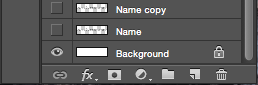
Make a new layer, it's the button that looks like a turning page under the layers section. All your layers should be transparent except your Background. ALWAYS CREATE A NEW LAYER AFTER MAKING A CHANGE TO THE IMAGE!!! This way so that if you mess up, you don't have to start all over.
Optional: Rename it something else by double clicking it. This is not necessary, but it can keep your layers identified which one is which.

Step Two: The Text

Type your name on that layer with the type tool (Horizontal Type Tool).


The layer should be a text layer, but we need it to be paint-like. Right click on the layer and rasterize it.
Now create a new layer, except this one needs to be just like the previous one. So instead of clicking the new layer button, duplicate the layer.
A window will pop up. It just says what size the layer is, what you want to name it and such. Keep everything the same, and just click Okay.

Step Three: Work on the Text

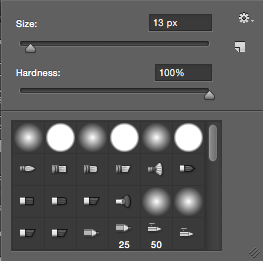
Now, here is the fun part, although is is quite tedious. You will slowly erase it backwards, bit by bit. Select the eraser tool. NOT THE MAGIC ERASER TOOL. That makes your entire name disappear. Trust me, I learned that the hard way.


Make sure the hardness is at 100%


Since "n" is the last letter of my name, I will erase a little bit off the end. Work backwards, so when you animate it, it will look like handwriting.


Done with the last name.


Finally, when your name is completely gone, it's time to start the animation. This part will be short and easy.

Step Four: Animating

You may already have a timeline out. If you don't, get it there. Go to window and check timeline.


It should appear at the bottom of your interface. The button should either read create frame animation or create video timeline. Choose frame animation, and click it.


There is a little tiny menu button on the top right corner of the timeline. You might be able to see it in the top picture, but here is a close up.


That menu is pretty much all we use to animate it. Click it, and make your layers into frames.


Remember: Your layers were transparent. You still have that plain white background layer, right? Good, now we use it. Shift click and select all your frames.


Look to your layers menu, and click the eye on the background layer. If it is already brightened, click it twice.


If you play your animation though, it will be written backwards. We need it to look like handwriting though, so you must flip the frames.


I already did that when I took the screenshot, but it will be brightened. Click it.
Now your animation is complete. (Yay!) But you still need to export it. I'm going to export as a gif. Go to the file window, and click Save for Web.


You should get this window.


Make sure it's a GIF 128 No Dither. Everything looks good, click Save. If you choose done, it'll just save your settings.


Yay! NOW you are fully done. Play your Gif, post it on the internet, show it to friends. Do what ever you want with it.